Overview
If you need to work from home and have a computer that is on the Internet, it is pretty straightforward to connect to the Sealion Office systems.
Citrix allows you to work as if you are in the office. You will have access to your desktop (a virtual desktop located at the office on the Citrix server) and all your applications. Please note that it does not matter if you do not have a very fast machine at home (or that Outlook is not installed) as all you will require is an Internet connection. Once you have connected to the office Citrix server you will be looking through a “window” to a virtual desktop which is very fast and has all the applications installed (including Microsoft Office, Premaster, OCS_HR and Navision). You will be able to print documents to your home printer as well as copy documents from the Department drive or from an email to your home computer.
The following steps are described in more detail below.
- Connect to the Internet (Chrome is used here to illustrate the process but any browser will do. The Mac is supported but contact IT for different instructions).
- You will need to know your Sealion user name (ie hnelson) and your Sealion computer logon password.
- First you will need to install a VPN client called SonicWall NetExtender which will securely connect you to our office network (see Sonicwall VPN Client Installation below).
- Then using your browser you will log on to the Citrix server (see Citrix Client Installation below). The first time you log on you will download and install a “plug-in” in your Browser. This is a once only process and once installed is not required again.
- And finally (see The Citrix Virtual Desktop below), you will open and work in your own “virtual” computer (not the exact one at the office which may have a desktop set up with your shortcuts but a “new” desktop on which you will be able to save and arrange shortcuts for future use). And as with your office computer you will have access to your Personal drive, the Department and the Public drives. If a local copy of a file is required for working on offline you will be able to copy between the “virtual” Citrix computer and your own computer hard drive. Please note that it is illegal to copy any file that includes third party personal data to your home computer.
Citrix Installation
Sonicwall VPN Client Installation
Go to http://vpn.sealionshipping.co.uk or click here to download Sonicwall NetExtender – the Sonicwall VPN client.
You will be presented with a login box
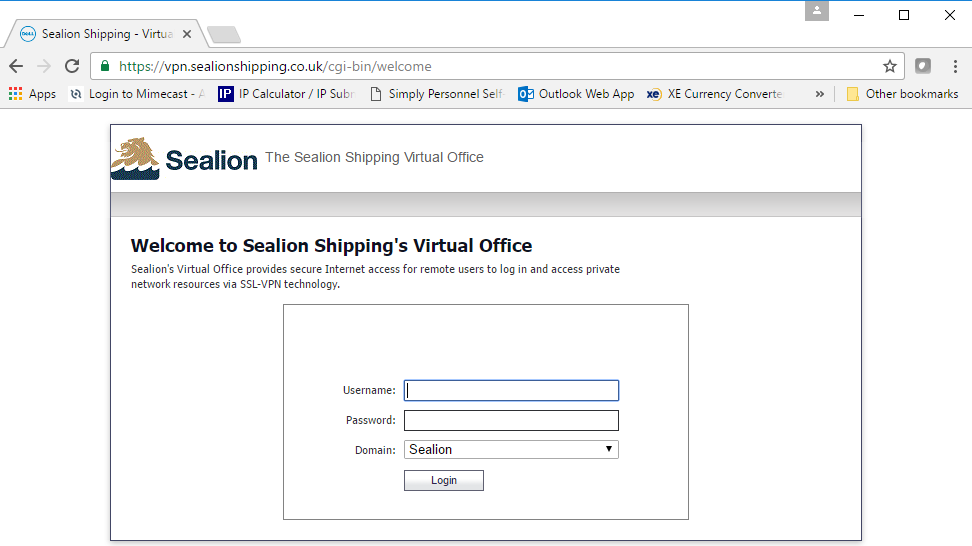
Type in your Username and Password (The Domain is auto filled and should say Sealion). Click Login
You will then come to the Welcome Page

An alert appears towards the bottom of the browser saying that the website wants to install an add-on. Click on “Install” to install the WebCache Cleaner application (a security application that removes all traces of accessing the VPN site when you exit)

Once that is installed, click on the NetExtender logo

And follow the on-screen instructions as per next page

Note: Once you begin the installation process when using the later versions of Internet Explorer the following may appear.

If this is the case do the following steps as illustrated below
Go to Settings (small cog on the top right of the Internet Explorer menu bar). Select Internet Options


Select the Security tab. And select Trusted sites. Click on Sites button. If using Chrome you will need to access the same settings in Control Panel, Internet Options.

This will throw up the following box. You will see that the website has been auto filled.

Click Add and the website will be added into Websites.
Close and click OK to close the Internet Options window. NetwExtender begins to install.

Once the NetExtender has installed you will see the VPN Client interface saying status “Connected”
(You may be requested to reboot your machine. If so, you will have to enter your login details as described below. Finally click Login and you will connect).

While Sonicwall NetExtender is connected you will see its icon on the task bar. Right click the icon and select “Pin this program to taskbar”. You will then be able to access it easily for future use.
Click on “Disconnect” and exit out of the Sealion VPN web page. From now on you will be able to log into the Sealion network just using the client. Some of the fields are pre-filled.
| SSL-VPN Server: | vpn.sealionshipping.co.uk |
| User name: | your username |
| Domain: | Sealion (capital ‘S’ lowercase the rest) |
The lower box should say “Save user name if server allows”. If not, type in your User Name and your password and use the down arrow to select “Save user name if server allows”. Click Connect. When you disconnect, the application will have saved your User Name and all you need to do the next time to log into the VPN is enter your password.

Citrix Client Installation
Logon to the Sealion network via the SonicWALL SSL-VPN NetExtender client.
Type sealionctx in your web browser as below. (Or click on here to link you directly)

You will arrive at the following page (now bookmark for future reference)

Click ‘Log In’ at the bottom right hand corner of the central dialog box and you will then see:-

Type in your User Name and password, leave the Domain as it is. Then click Log On.
You will see a Citrix Desktop icon displayed.

Double click on the Citrix Desktop icon and plug-in will download onto the browser toolbar. Right click on the plug-in and select “Always open files of this type”
Then click once again on the Citrix Desktop icon and a Windows 7 desktop will appear in a separate window.

The Citrix Virtual Desktop
This Windows 7 desktop is a virtual desktop on the Citrix server in the office. This is your desktop and will allow you to customise as you like and keep the settings on exit for use at another time.
On the desktop go to Start, My Computer and you will see the office shared drives (Public, Operations, Technical, etc.). You will also see drives labelled ‘Local Disk’ (Local Disk (C: on Home-PC) for example). This is the C drive of your home computer. If you need a document from the department drive or need to download from an email then you can save it to this ‘Local Disk’. You can then open the drive on your computer and the document will be there.
Go to Start, Devices and Printers. You will see the office printers and also your own printer (if installed). If you want to print from Outlook or Word you should print using this printer. If you want to print from Premaster you must set this local printer as your default printer (right click on printer and “Set as default printer”)
If this is your first time using Citrix, you will need to set up Outlook by creating a New Profile
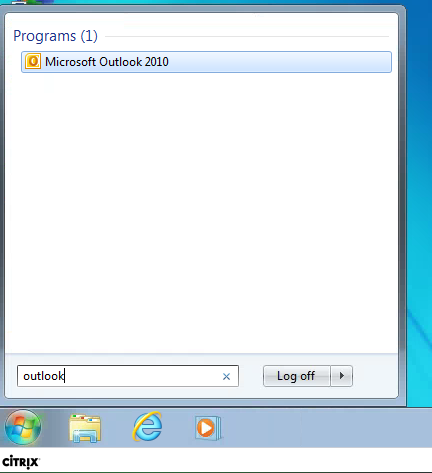
Go to the Start Menu and type Outlook in the Search box. Double click on Microsoft Outlook 2010
The New Profile Wizard begins

Type in “Outlook” as the Profile Name and click OK.

The system will find your details automatically. Then click Next and you will see the following screen.

Click Finish to have Outlook open your mailbox.
Once you have finished using Citrix, it is important to log off. Please use the following sequence.
- Close all open applications (ie Outlook, Word, PCS_HR, etc.) and then Start, Log Off (as you do in the office).
Do not click the white cross in the red box.
If you do not log off, you can return to where you last left off (open applications and all). However this leaves the session open and will exclude other users from using your session (we have licenses for a certain number of concurrent sessions).
- After logging off your desktop, you will then need to Log Off the Citrix web interface (Click your name and the logoff as below)

- And finally, you will need to Disconnect from the SonicWALL SSL-VPN Client.
Now to recap:
Once you have been through the above installation procedure, this is how you log on to your Citrix desktop in the future.
- Double click the little grey N by the clock on the taskbar. This opens NetExtender. Enter your password and Connect
- Open the browser and type sealionctx into the address bar and press Enter
- Click login and then type your User Name and Password into the Citrix web log-in screen. Click Log On.
- Select the Desktop icon to open your Citrix computer.
Call IT if you require any help
Simon Hayes
IT Manager
Sealion Shipping Limited
07973 745 328
Terry Gardiner
07795 614 309